IdControl Docs
Install App
Simple steps to install IdControl for internal testing.
Install IdControl
Use one of the two options below to install the app. For most users, the QR flow is the fastest option.
Choose an Install Method
Option 1: Install with QR code
Scan the QR code, join the tester page, and then install the app from Google Play.
Step 1: Scan QR Code
Scan this QR code from your phone. It opens the internal testing join page for ID Control.

Step 2: Join as Tester
You must be added as a tester. Once tester access is active, continue to Google Play.
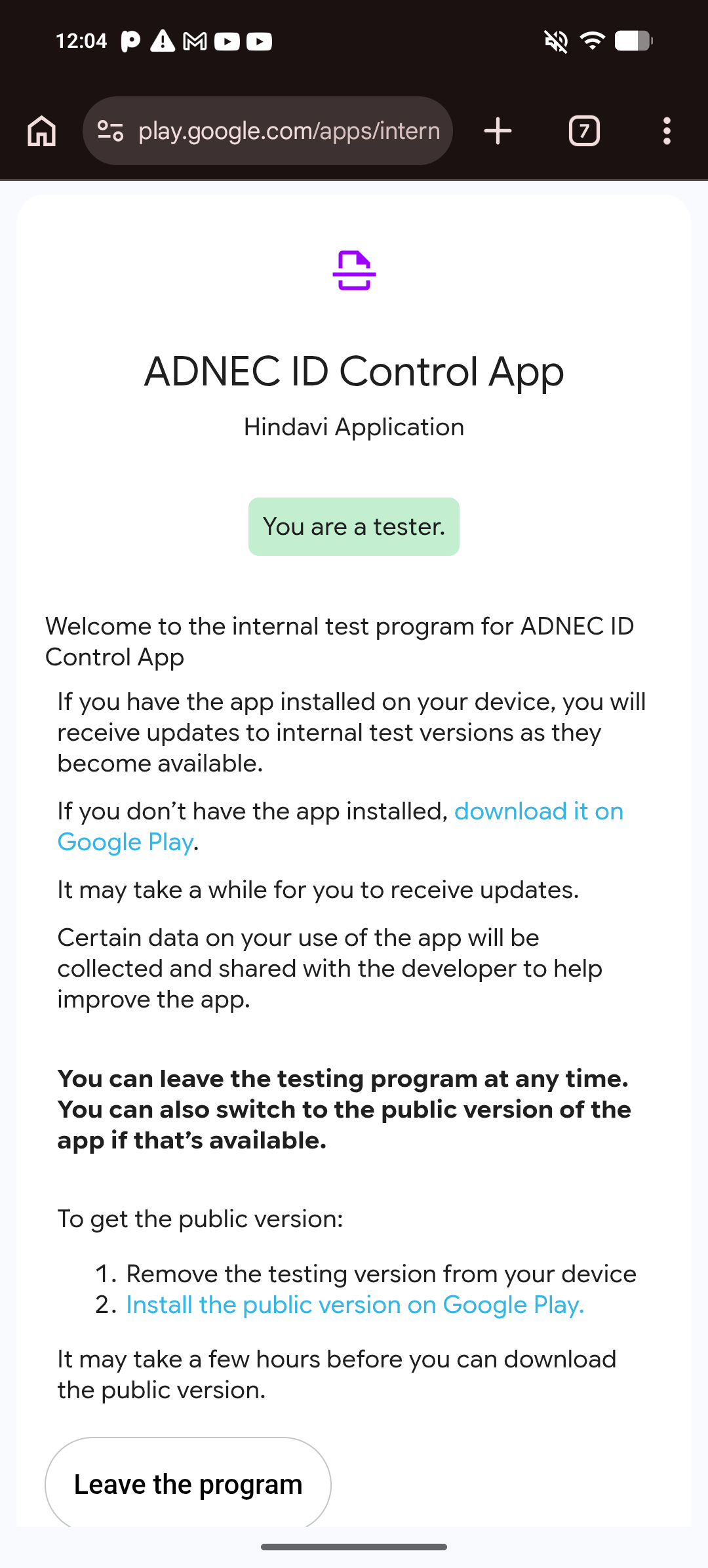
Step 3: Install from Google Play
Tap download it on Google Play and then tap Install on the app page.
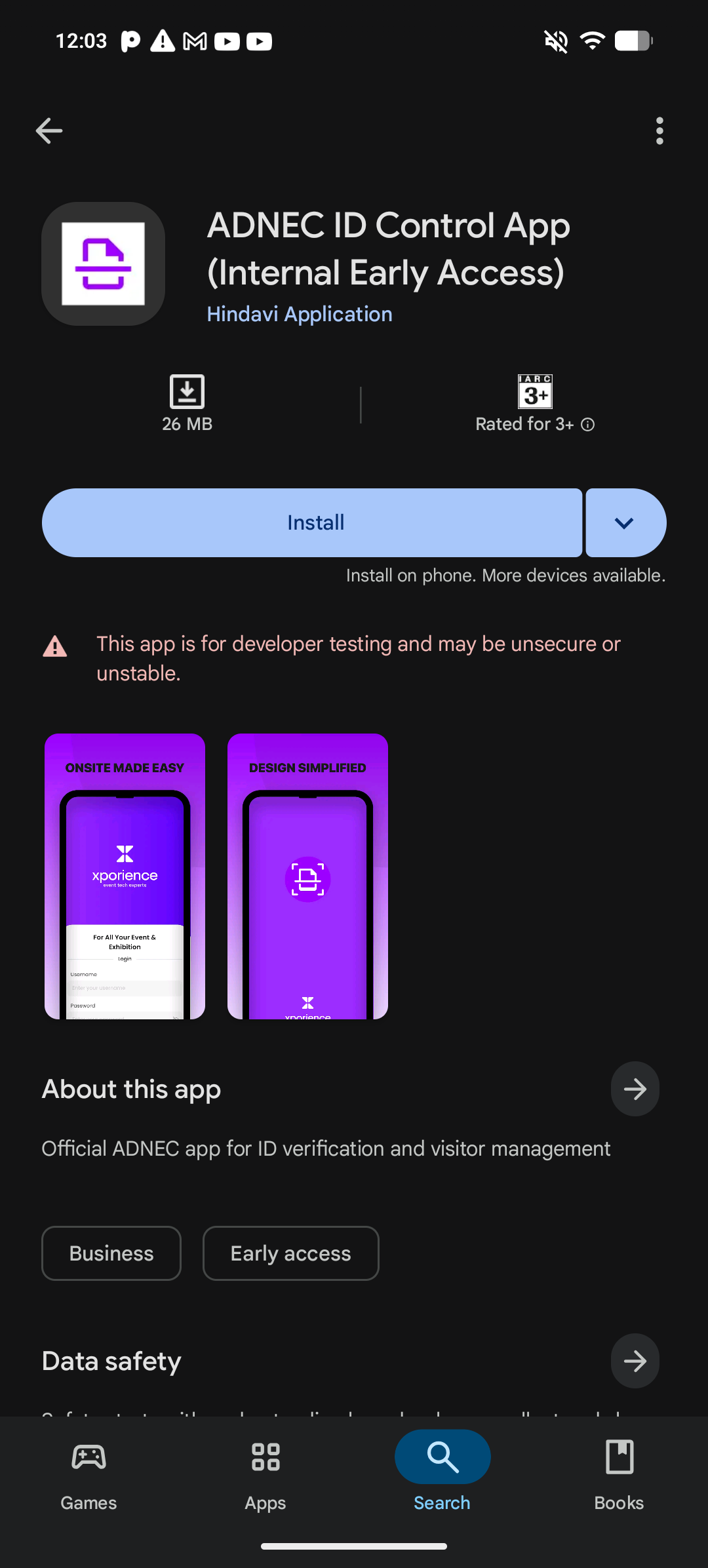
Option 2: Search in Play Store
If you do not have the QR code, install the app manually from Google Play.
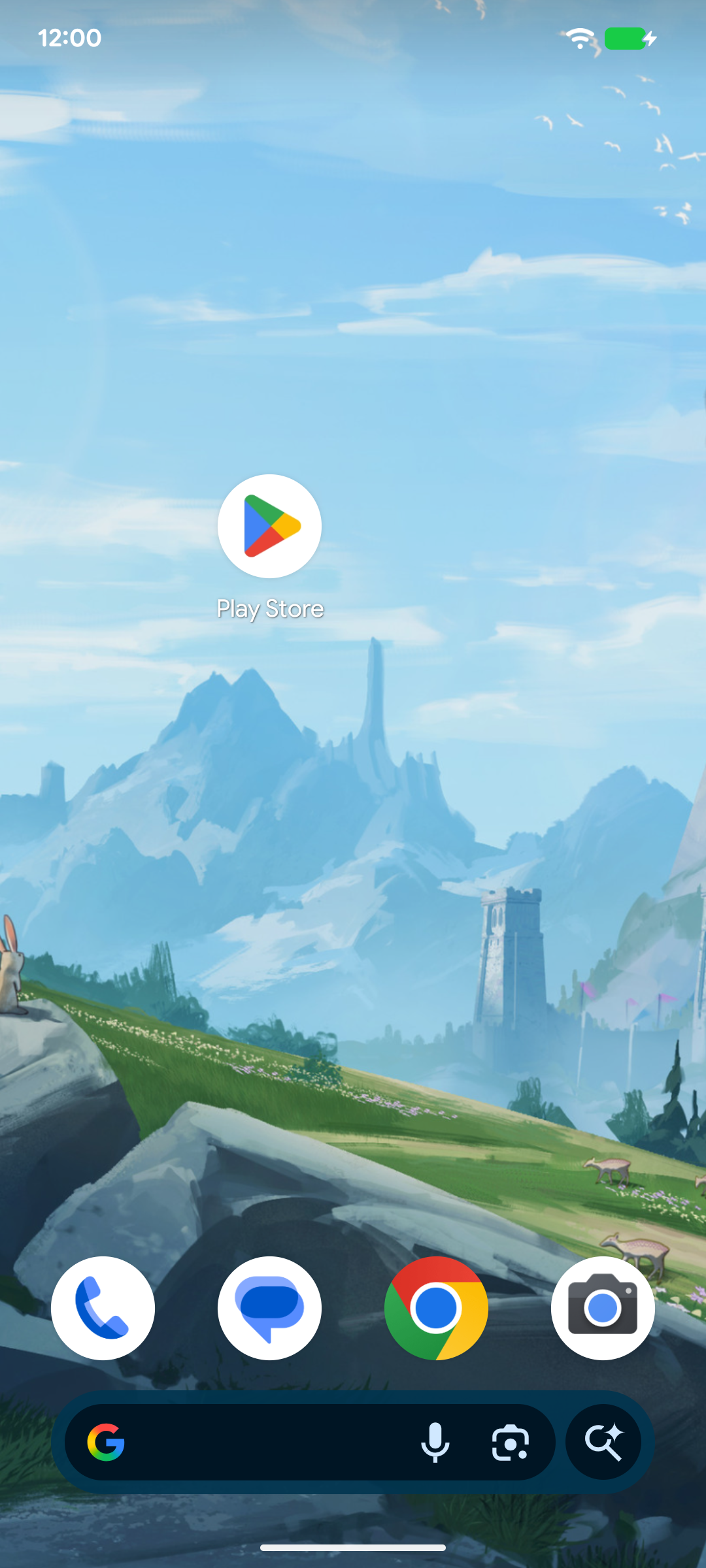
Step 1: Open Play Store on Android
Step 2: Open Search in Play Store
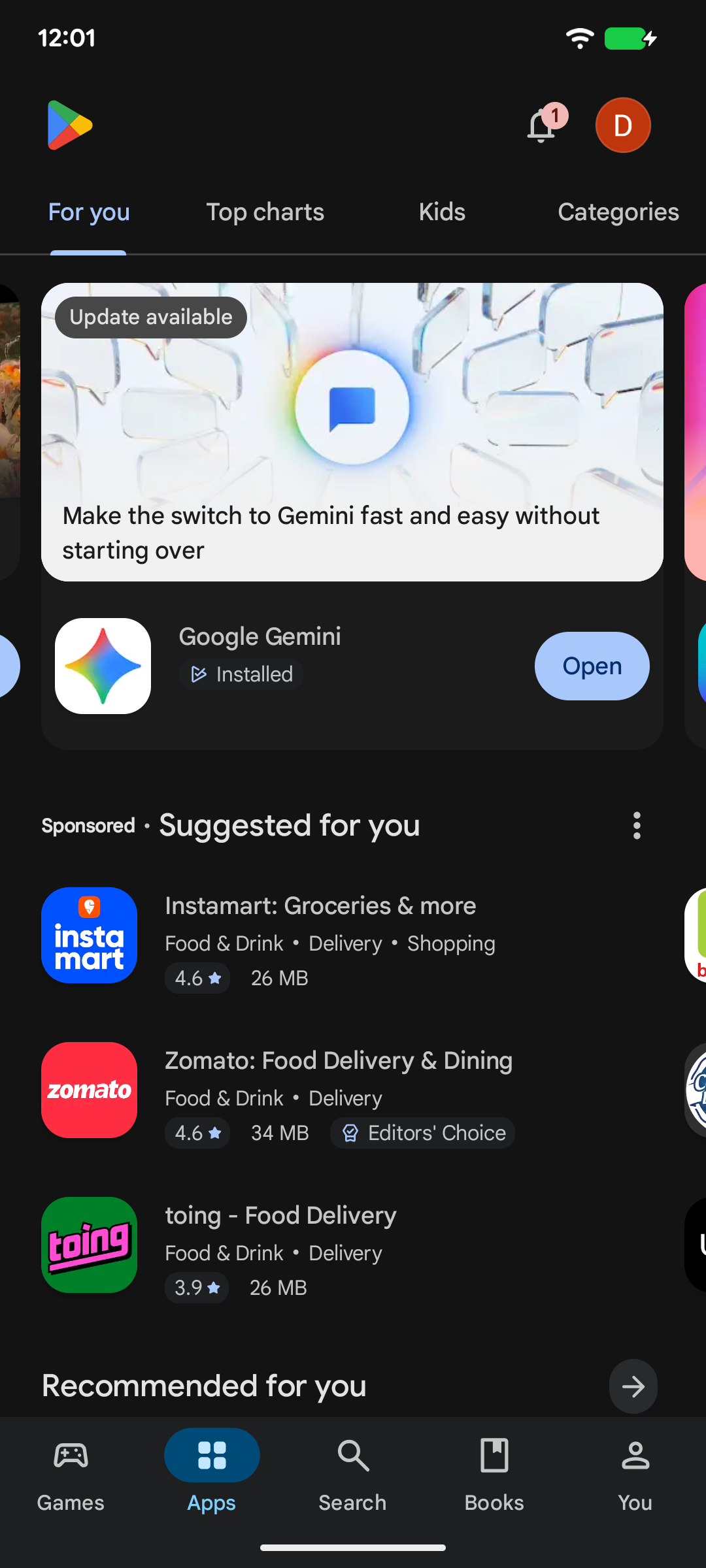
Step 3: Search the package name
Search for com.hindavi.idcontrol
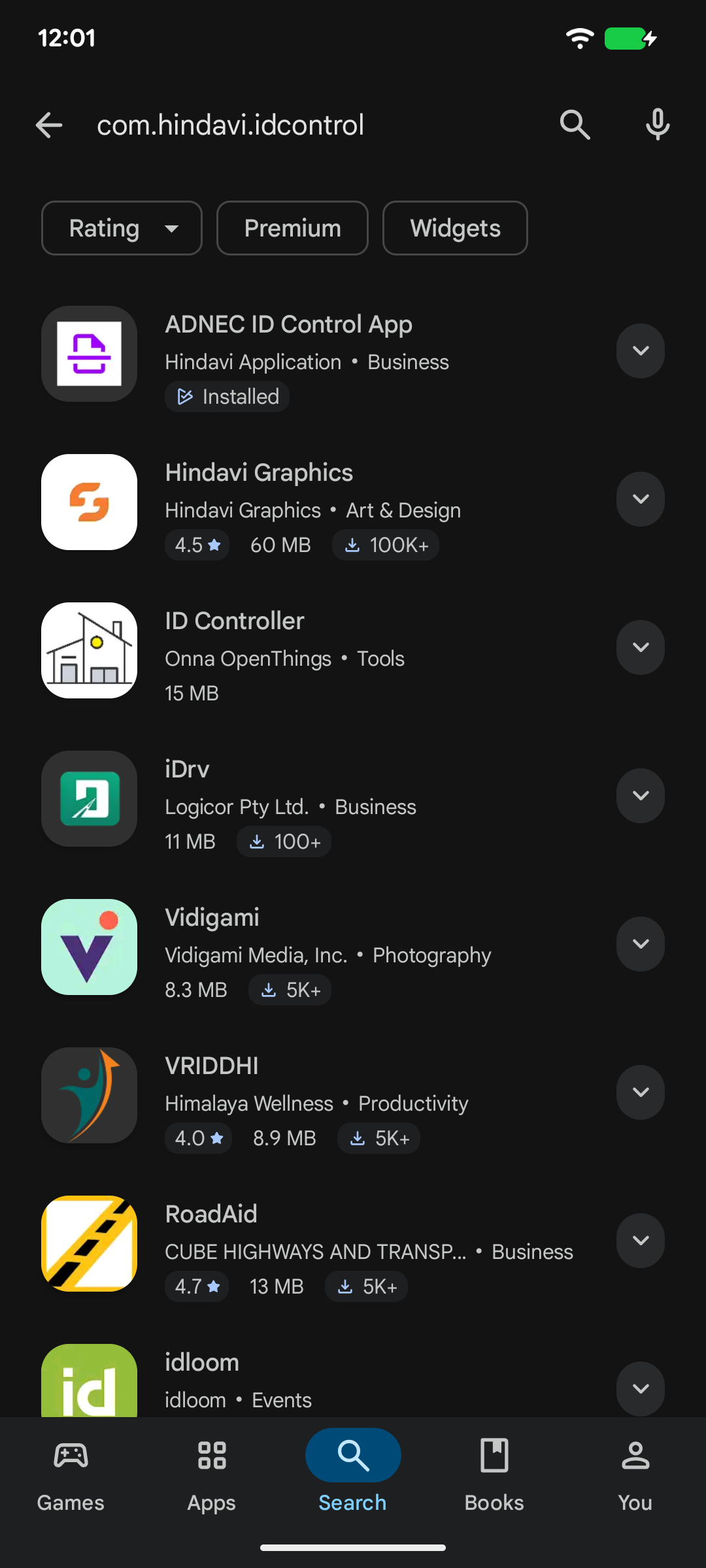
Open the result and install ADNEC ID Control App.
After Installation
When you open the app for the first time:
- Allow camera permission when asked.
- Log in using the credentials shared with you.
- Open the training guide if you need a full walkthrough.
Important: If tester access is not active yet, wait a few minutes and refresh the tester page.
Note: Login credentials are shared separately before the event.